Private, independent and Catholic schools

One help desk for Tech, Facilities and Events.

For a school that runs its own IT: one request portal for every office that takes requests, devices read from Google Admin, Intune or Mosyle, and a price that is on the website. A single school with up to three technicians can run it free.

The full District plan for 90 days. No card, no sales call, nothing converts on its own. The sign-up link opens with Private or Catholic school chosen as the organization type.

One portal

Every office that takes requests, on one desk.

In Beacon a department is a team and a request form, tied together. Staff open the portal, pick a card, answer that department's questions, and the request lands with the right people. How departments work.

Tech

A projector that will not connect, a Chromebook with a cracked screen, a password. Every ticket arrives with a suggested category, priority, team and article, and a person sends every reply. The portal shows matching knowledge base articles while staff type.

Facilities

HVAC, plumbing, keys, custodial and grounds, routed to the people who fix them, with the same ticket history, SLA clocks and reports as technology. Facilities in Beacon.

Events

A gym set-up, a microphone for the assembly, chairs for open house. Create an Events department under Admin › Teams and it gets its own card, questions, subcategories and team, which is told about each new request by email and in the app.

Operations, the business office, HR

Any office can have a card. A team marked private, such as HR or payroll, has tickets that only its members, the organization's owners and, unless you turn that off, administrators read. A department can have its own email address, so mail forwarded from hr@ opens in HR's queue. Request forms.

Email, too

Forward help@yourschool.org to your Beacon address and every message becomes a ticket with an SLA clock; replies join the thread. Staff who never open the portal are still covered. Email to ticket.

In Beacon

What the technology office sees.

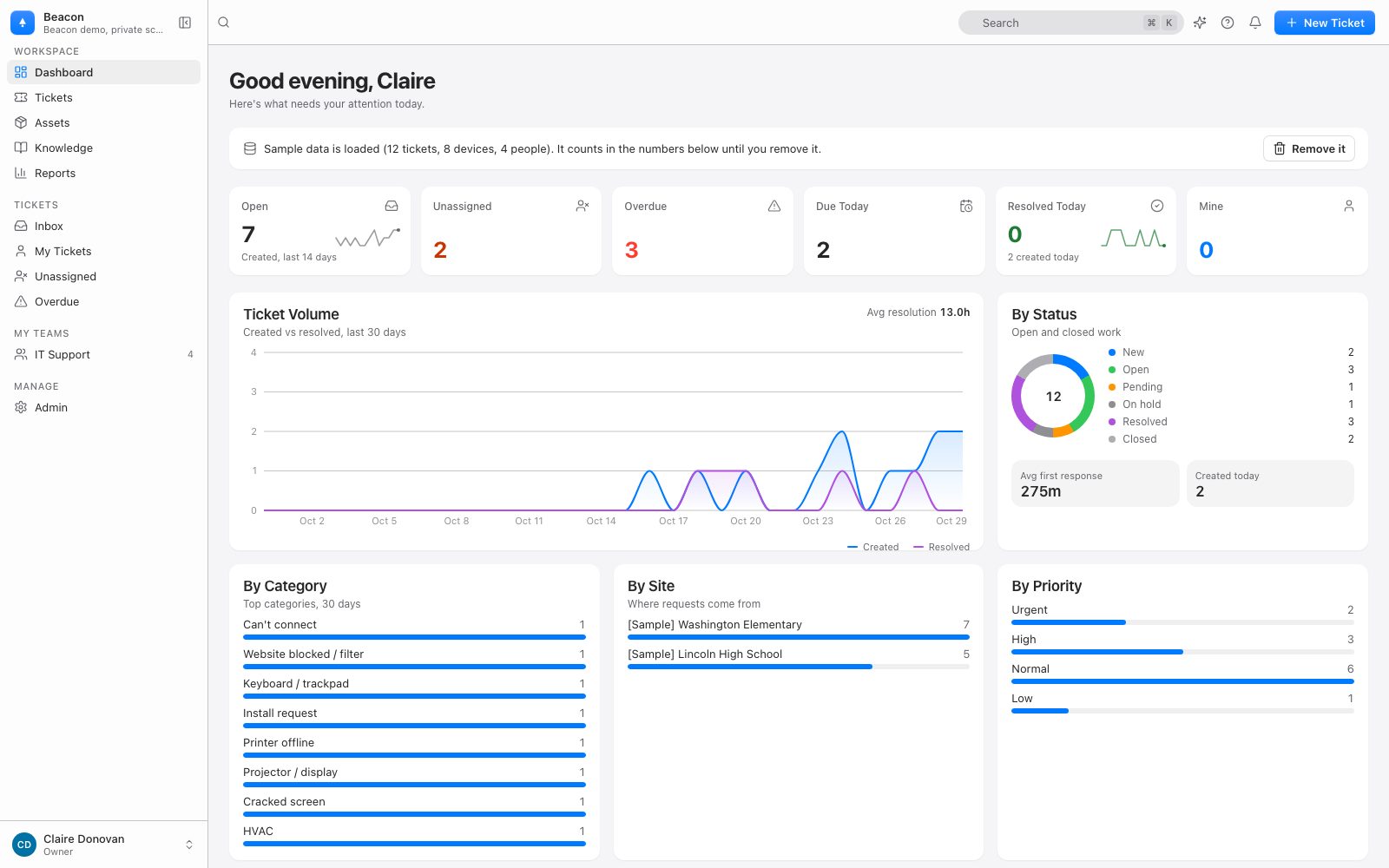
The dashboard on the pilot

What is open, unassigned, overdue and due today in every building, with the month's ticket volume and requests by category, site and priority.

Beacon's dashboard for a private school with sample data loaded: counts of open, unassigned, overdue and due-today tickets, ticket volume over 30 days, and requests by status, category, building and priority

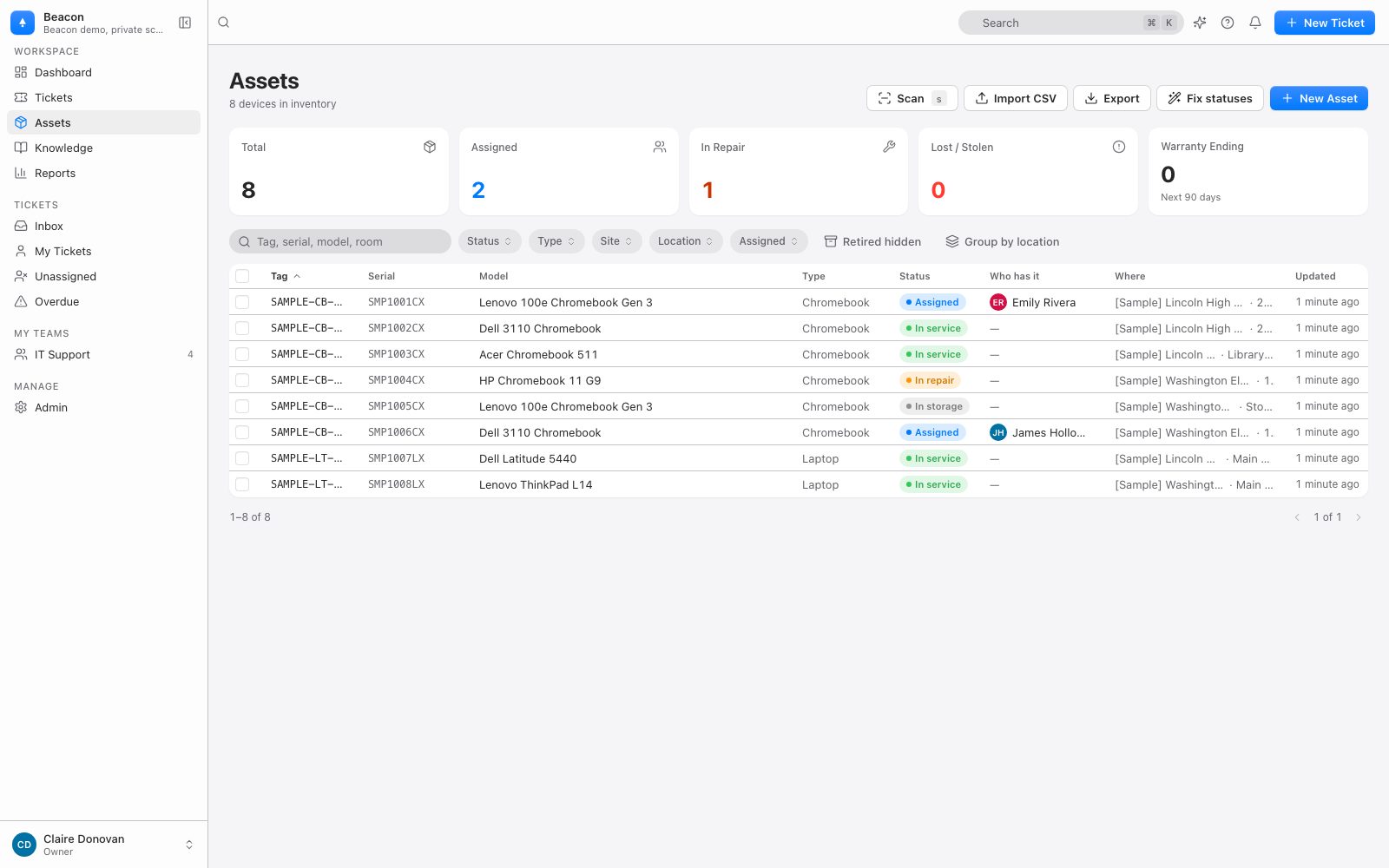
Every Chromebook, with a place and a holder

The Assets page lists each device with its tag, model, status, who has it and where it is, filtered and grouped as you choose.

Beacon's Assets page for a private school: Chromebooks and laptops with their tag, serial number, model, status, who has each one and where it is

Devices

Read from the consoles you already run.

Each sync is read-only and runs nightly. Beacon never writes to Google, Microsoft or Mosyle. Device sync is part of the District plan and the pilot.

Chromebooks from Google Admin

A Workspace administrator connects once. Every Chrome device appears as an asset, devices are checked out to the annotated user, and annotated locations become rooms and carts. How the sync works.

Windows and more from Intune

Devices from Intune reads every device managed in Microsoft Intune on the school's Microsoft Entra connection, which an Entra Global Administrator connects once. What it reads.

iPads and Macs from Mosyle

Devices from Mosyle syncs the iPads, iPhones, Macs and Apple TVs in Mosyle Manager Premium, with the school's own API token and a Mosyle administrator account made for Beacon. What it reads.

Where it is, and who has it

A device belongs to a site and a location (a room, a cart, a closet, a lab) and can also be held by a student or a staff member. Loaners, check-out and check-in, repairs and warranties sit on the same page as every ticket about the device. Asset management.

Labels with a QR code

The asset tag, a Code 128 barcode, a QR code that opens the device in Beacon, the serial, make and model and your school's name. Dymo, Brother and Avery stock or a custom size. Labels, in detail.

Devices in Jamf, and anything else, come in from a CSV or a paste from a spreadsheet, matched by asset tag or serial number; a re-run updates rather than duplicates. On Starter, that is how every device comes in.

Switching

From KACE, a spreadsheet or a shared inbox.

Everything comes in through Admin › Import, a three-step wizard that runs in the background and ends with counts and a list of any row errors. Nobody is emailed by an import.

From KACE

Columns from the KACE appliance's Users, Assets and Tickets lists are recognized; categories are created as paths, and a later export updates tickets by number, so both can run side by side for a while. Switching from KACE.

From a spreadsheet

Any CSV with a header row, or rows pasted from a spreadsheet. Templates with Beacon's own column names map themselves; for anything else you map the columns once. Importing.

From a shared inbox

Forward the mailbox everyone writes to and keep the address staff already know. Each message becomes a ticket, and nobody has to ask whether someone else already replied.

Pricing, as published

Free for up to three sites. The District price after that.

Private and diocesan schools are priced as District, the same as public districts. Every number here is on the pricing page.

Starter, free forever

A single school with up to 3 technicians and 1,000 devices can run on Starter with no time limit and no card.

  • Up to 3 sites, up to 3 agents and up to 1,000 devices. An agent is anyone who works tickets, in any department.
  • Unlimited requesters: students, staff and families are never billed.
  • Tickets, devices, knowledge base and portal, with the facilities and HR request modules.
  • Sign in with Google or Microsoft. AI triage and deflection with a small fair-use allowance.
  • Full data export. Devices by CSV or paste.

Starter for a school, in detail.

District, $1 per student per year

Device sync, a fourth technician, a fourth site or more than 1,000 devices means District, at the published price.

  • $1.00 per student per year, $0.85 above 5,000 students and $0.70 above 20,000, with a $900 per year minimum. A school of 600 students pays the minimum; a school of 3,000 pays $3,000.
  • Enrollment is your most recent official fall count. Staff are not counted.
  • Every module, unlimited agents, sites and devices, device sync from Google Admin, Intune and Mosyle, students from PowerSchool or ClassLink, and Clever, ClassLink or any OpenID Connect sign-in.
  • Locked for three years from your start date. Purchase orders accepted, annual invoice in advance.

Start with the free 90-day pilot: the full District plan, no card, nothing converts on its own.

Start a free 90-day pilot Start on Starter

Not in Beacon

What Beacon does not do for a private school.

Beacon is the help desk for every office and the record of every device. Report cards, tuition and the school calendar stay in the systems built for them.

Not the school's other systems

  • No student information system. Attendance, report cards and family contacts stay in the system that holds them, and Beacon never writes to it.
  • No tuition or billing of families. Tuition stays where the business office keeps it, and nobody who sends a request is ever billed.
  • No event calendar and no room or facility booking. Setting up the gym for an assembly is a request to the team that does it. The calendar and room bookings stay where they are.

Not yet

  • No sync from Jamf Pro or Jamf School. A CSV exported from Jamf comes in through Admin › Import, matched by asset tag or serial number, and the next one updates the same devices.
  • No app for Android phones or tablets. Beacon Help Desk for iPhone and iPad is on the App Store. On Android, staff use the mobile web app, with no camera scanner, no offline mode and no push notifications.

How to start

Without a sales call.

Beacon does not run sales calls or demos with a person. Everything below is self-serve, and a person answers hello@beaconhelpdesk.com within one business day.

1. Watch the video

Sixty seconds: tickets sorted as they arrive, and a Chromebook tag scanned, with the device, its ticket and its history on one screen. The demo.

2. Sign up

Open the pilot link and sign up with Google or an email and password. Want Starter from the first day? Choose Start on the free Starter plan instead.

3. Point requests at it

Forward your help mailbox, share the portal link, add a department per office, connect your device console, and import the rest. Getting started.

Questions

Asked by directors of technology at private schools.

Will Beacon sign our student data privacy agreement?

Yes, on request, the same way as for a district: the SDPC National Data Privacy Agreement and state addenda. Email privacy@beaconhelpdesk.com with the agreement your school uses; Beacon signs it and sends it back by email. Sample data has no real people in it, so no agreement is needed to look around first. Every school lives behind Postgres row-level security, Beacon never trains AI on your data, and everything can be exported as JSON and CSV or deleted at any time. Security · Privacy Policy.

We are a Google school. Or a Microsoft school. Does it matter?

No. Staff and students sign in with Google or Microsoft on every plan, Starter included, and people sync nightly from Microsoft Entra on every plan too, with their title, phone and the site you map them to. On the District plan and the pilot, Chromebooks sync from Google Admin, people sync nightly from Google Workspace on the same Google Admin connection, devices managed in Microsoft Intune sync on the school's Microsoft Entra connection, and People from PowerSchool or ClassLink brings students in from the student information system. Every sync is read-only.

Our iPads are in Mosyle. Does Beacon read them?

Yes, on the District plan and the pilot. Devices from Mosyle syncs the iPads, iPhones, Macs and Apple TVs in Mosyle Manager each night, read-only, with the school's own API token and a Mosyle administrator account made for Beacon. Devices in Jamf are not synced; they come in from a CSV or a paste from a spreadsheet, matched by asset tag or serial number. Beacon Help Desk for iPhone and iPad is on the App Store, and the mobile web app has the same inbox, tickets and portal.

How long does setup take?

It depends on what you bring with you, so this page does not promise a number. The order is: create the organization, forward your help mailbox, share the portal link, add a department for each office that takes requests, connect Google Admin, Intune or Mosyle, and import anything else from a spreadsheet. The Getting started guide lists the steps, and a panel on the dashboard checks three of them against your own records: your staff in, the portal link in front of them, the first staff request. The pilot runs for 90 days.

What happens when the 90-day pilot ends?

Nothing is charged and nothing renews. You sign at the published price, or you export your data. A school that does not sign moves to the free Starter plan with its data intact: anything above Starter's limits is kept and never deleted, nothing new can be added above a limit, and the syncs Starter does not include stop, while what they brought in stays.

Can Facilities and Events use the free plan too?

Yes. The facilities and HR request modules are on every plan, and departments with their own portal cards and forms work on Starter. The limit to watch is agents: Starter allows 3 in total, and anyone who works tickets counts, whichever department they answer for. Requesters are unlimited and never billed.

Do we have to talk to sales?

No. There are no sales calls, demos with a person or booking links. Watch the 60-second video, start the pilot or Starter yourself, and email hello@beaconhelpdesk.com with questions; a person answers within one business day.
Get started

Try everything for 90 days, keep the free plan after.

No card, no sales call, no auto-conversion. Sample tickets and devices are one click away on the dashboard, so you can look around first.