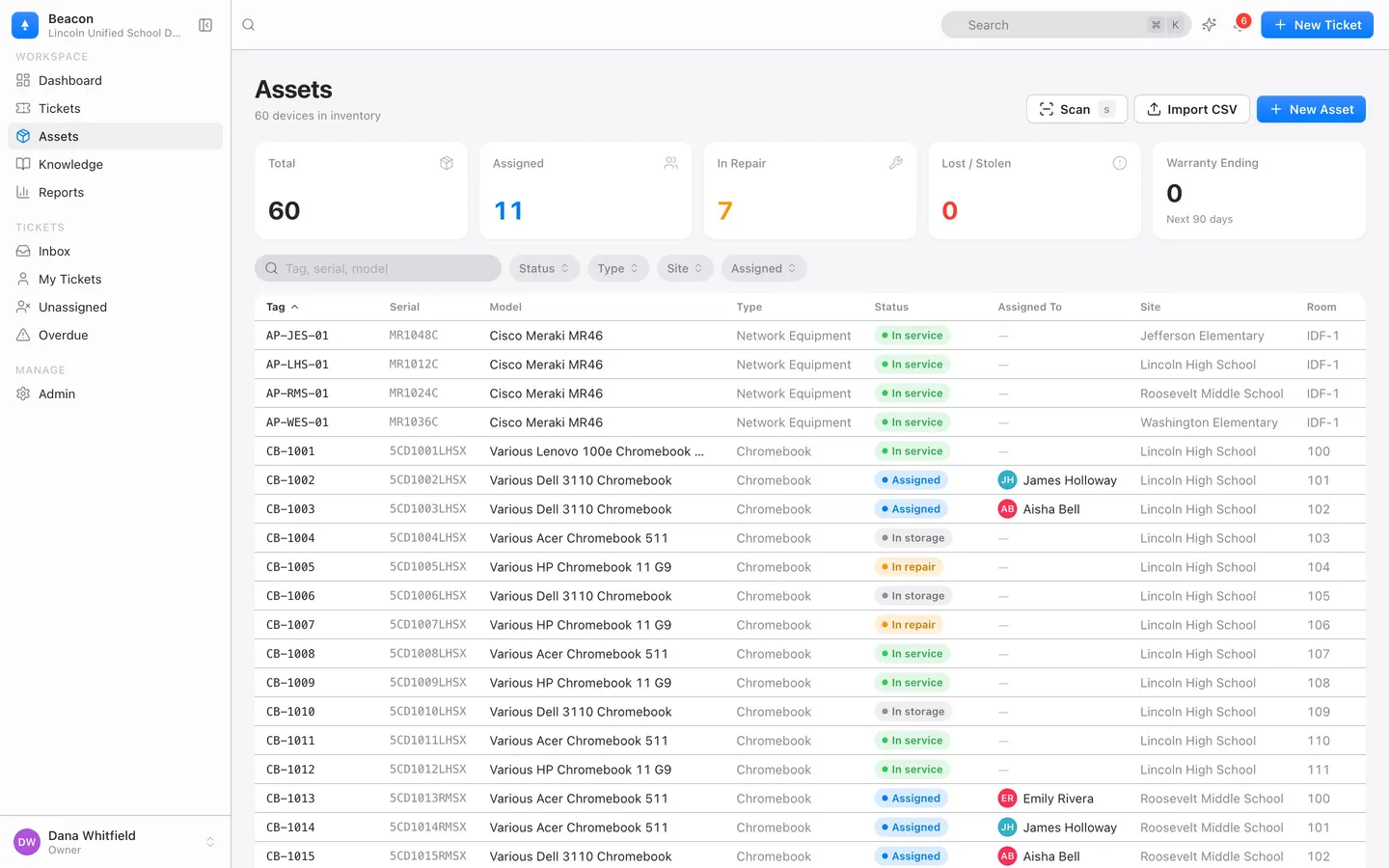
Does Beacon change anything in Google Admin?
No. Beacon asks Google to read Chrome devices and, for the people sync, users and group members, plus the email address of the administrator who connected. It never changes a device, a user, an organizational unit or a setting in Google.
Who can connect it?
A Beacon administrator, from Admin → Import, signing in to Google with a Workspace administrator account that can view Chrome devices: a Super Admin, or a custom admin role with read-only access to ChromeOS devices. The connect finishes only in the signed-in Beacon session of the administrator who clicked Connect; a Connect link forwarded to someone else does nothing.
How often does it refresh?
The first sync runs right after you connect. After that, once a night after 2 AM in your district's time zone, and whenever an administrator presses Sync now on the card.
Will the nightly sync overwrite our technicians' changes?
No. Status, asset tag, assigned user and site change only when Google's own value changed since the previous sync, or when the field in Beacon is empty. Filling an empty assigned user also marks a device that is In service or In storage as Assigned. The model follows Google. Room, purchase date, cost, warranty, funding source and notes are never touched by the sync.
We already imported our devices from a CSV or from Incident IQ. Will they be duplicated?
No. Devices are matched by serial number first. A device with the same asset tag is adopted only when it has no serial number of its own. On the first match Beacon keeps the existing tag and any status other than In service, unless Google says the device is deprovisioned or disabled; it fills an empty assigned user and site, and refreshes the rest. A different device that reuses a tag becomes a new asset tagged with its serial number and is counted as a tag conflict on the card.
Why is a Chromebook not assigned to anyone?
By default Beacon assigns a device only to the annotated user in Google Admin, and only when a person with that email address exists in Beacon. If your Admin console has no annotated users, turn on "Also assign devices to their most recent Google user" on the card: a device with no annotated user is then assigned to the person who signed in to it most recently, if that person is in Beacon. The trade-off is that a shared device may change hands as different people sign in; a device somebody holds changes hands only when its most recent user changes, and a sync never unassigns. Import your users first, then the next sync fills in the empty assignments.
What happens to devices that are deprovisioned or removed in Google?
A deprovisioned device becomes Retired and a disabled one becomes Lost. A device that no longer appears in Google is left as it was. The sync never deletes an asset and never unassigns one.
What will Google show when we connect?
Google's consent screen, which lists the permission to view your ChromeOS devices and, for the people sync, your users and group members. Google currently also shows a notice that it has not verified the app for these permissions; a Workspace administrator can continue past it. If your Workspace restricts third-party apps, allow Beacon first under Google Admin → Security → Access and data control → API controls → Manage third-party app access, using the client ID shown on the Chromebooks from Google Admin card in Beacon's Admin → Import.
Can we try it in the demo district?
No. A demo district is a made-up sandbox and cannot connect to a real Google Workspace. Connect your own Workspace from your organization's Admin → Import, or start a free 90-day pilot to try it.
Does Beacon sync from SCCM, Intune, Jamf or Mosyle?
Intune: yes. Devices from Intune reads every device managed in Microsoft Intune, read-only and nightly, on the district's Microsoft Entra connection, which an Entra Global Administrator connects once. It never writes to Intune and offers none of Intune's actions, such as wipe, retire or remote lock; the guide says what it reads. Mosyle: yes. Devices from Mosyle reads every device in the district's Mosyle Manager on the district's own API token, read-only and nightly; the guide says what it reads. SCCM and Jamf: not today. Those devices come in from a CSV file or a paste from a spreadsheet on Admin → Import, matched by asset tag or serial number, and a re-run updates them rather than duplicating them.